Simplifying The Data:
To begin filtering the data, you must first access the Rosters screen.
To learn how to do this, read our "How Do I View The Rosters Screen?" user guide.
From here, you can sort, filter and group the rosters list according to their values or tags.
Sorting The Data:
Start by selecting "Sort by" and selecting the criteria from the drop down menu as shown.

Once you have selected your criteria, then select Apply to finalise your selections and sort the data.
Note: The sorting filter allows you to arrange the documents in a suitable order.
Grouping The Data:
Start by selecting "Group by" and selecting the criteria from the drop down menu as shown.

Once you have selected your criteria, then select Apply to finalise your selections and group the data.
Note: Grouping allows you to break down the data into smaller groups based on the selected criteria.
Filtering The Data:
Start by selecting "Filter by" and selecting the criteria from the drop down menu as shown.
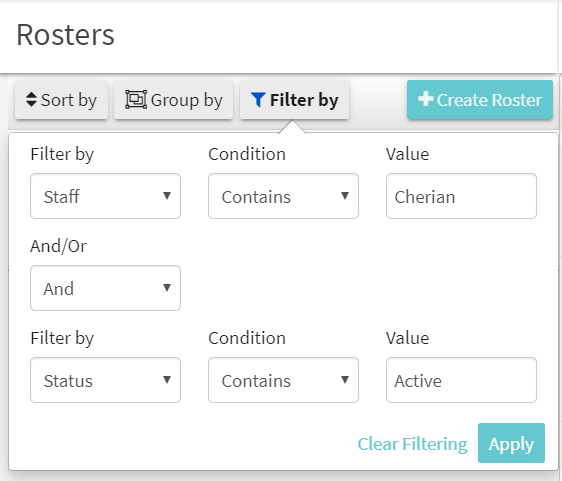
Once you have selected your criteria, then select Apply to finalise your selections and filter the data.
Note: The filter by option allows you to only display data that meets your given criteria.
You have now learned how to sort, group, and filter through your data!
Comments
0 comments
Article is closed for comments.